Identification
|
Quick start |
|
Select automatic threats in [[Options / Threats]]. PILAR applies non-optional threats from TSV. |
|
Not so quick start |
|
Select MIX threats in [[Options / Threats]]. By default, PILAR treats all assets as automatic and applies non-optional threats from TSV. You may remove / add threats as convenient. As a help, right click on an asset to check whether there are optional threats on that asset. Apply as convenient. |
This screen lets us identify which threats are possible for each asset.
Please, note that if you are in automatic mode, some buttons are disabled:
- copy and paste
- XML import
- apply and remove
- undo / redo
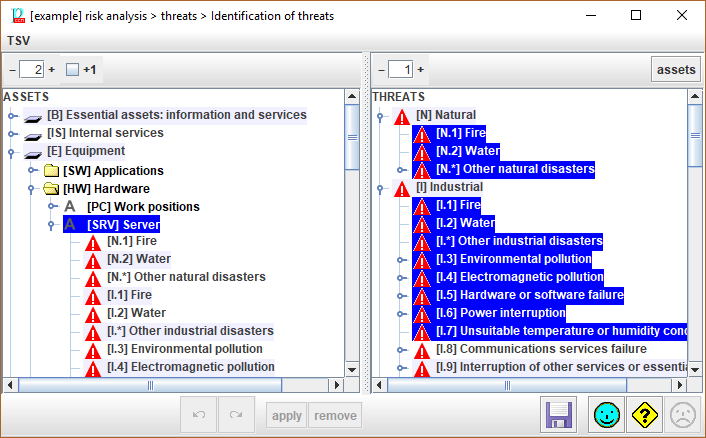
Top menu TSV
|
TSV |
See “[[TSV]]” |
|
|
Spinner to control the expansion of the assets tree. |
|
+1 |
Adjust the effect of the spinner. If +1 is checked, PILAR shows the threats associated to an asset. If unchecked, the threats are not expanded. |
|
|
Spinner to control the expansion of the threats tree. |
|
assets |
PILAR selects on the left panel, the assets that are associated to the selected threats. |


Bottom toolbar
|
|
Undo last association of threats to assets |
|
|
Redo last undone association of threats to assets |
|
apply |
PILAR associates the selected threats to the selected assets |
|
remove |
PILAR dissociates the selected threats to the selected assets. Or
PILAR dissociates the selected threats from the associated assets. |
|
|
Saves current project either in a file, or in database (according to its source). |


- Right click > CURRENT
- to select current threats on the right panel
- Right click > STANDARD
- to select threats on the right panel (those in TSV, but optional ones)
- Right click > OPTIONAL
- to select threats on the right panel (those in TSV marked as optional)
[[Options / Threats]] are set to automatic.
Some buttons are disabled:
- apply and remove
- undo / redo
- cancel and close
[[Options / Threats]] are set to manual.
- Apply and remove buttons are enabled.
- TSV is not applied by default
[[Options / Threats]] are set to mix.
- Apply and remove buttons are enabled.
- TSV is not applied by default
In manual mode and mix modes, you can associate threats to assets freely.
To assign TSV threats to an asset
(or a group, or a layer, or all of them)
- select asset(s), group(s), layer(s), or top node
- top menu TSV > apply
To assign a threat to an asset
(manual mode or mix mode and manual asset)
- select the asset on the left (one or more)
- select the threat on the right (one or more)
- click APPLY
To remove a threat from an asset
(manual mode or mix mode and manual asset)
- select the asset on the left (one or more)
- select the threat on the right (one or more)
- click REMOVE
or
- select the threat on the left (one or more)
- click on REMOVE
Which threats are associated to an asset?
- select the asset on the left
- right click > CURRENT
Which threats are associated to an asset as standard?
- select the asset on the left
- right click > STANDARD
Which threats are optionally associated to an asset?
- select the asset on the left
- right click > OPTIONAL
To "copy and paste" threats from an asset onto another
(manual mode or mix mode and manual asset)
- select the source asset on the left
- right click > CURRENT
- select the destination asset on the left (one or more)
- click APPLY
Which assets are subject to a threat?
- select the threat on the right (one or more)
- click ASSETS