Valuation
|
Quick start |
|
If [[Options / Threats]] is set to automatic or mix mode, PILAR applies TSV values. |
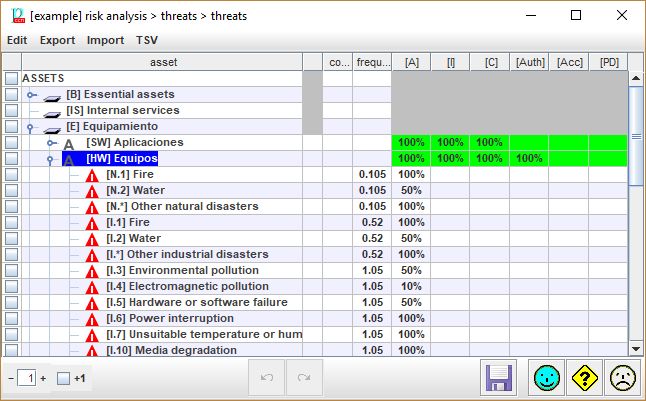
After determining which threats are relevant to each asset, let's rate them:
Top menu EDIT
|
Options |
options – see [[Edit_options]] |
|
copy |
Select one or more value cells. Copy values to be pasted. |
|
cut |
Select one or more value cells. Cut values to be pasted. |
|
paste |
Select one or more destination cells. Paste the copied values. If the source range is 1 cell, and the destination covers several cells, the value is copied into all of them. |
|
to CSV |
Comma Separated Values (for excel) |
|
to XML |
eXtensible Markup Language |
Top menu IMPORT
|
from XML |
eXtensible Markup Language |
Top menu TSV
|
TSV |
See “[[TSV]]” |
|
apply |
apply tsv to selected assets / threats |
Table
|
1 |
|
Click on checkboxes to check / uncheck. SHIFT-click to check a range. Click on column header to clear current selection. |
|
2 |
assets |
assets |
|
3 |
|
shows the mode of each asset / threat:
In mix mode, click to change |
|
4 |
level |
This column presents likelihood. The format is decided at [[Options / Likelihood]]. |
|
5 … |
|
These columns present degradation for each security dimension. The format is determined by [[Options / Effects]]. |
Bottom toolbar
|
|
Spinner to control the expansion of the assets tree. |
|
+1 |
Adjust the effect of the spinner. If +1 is checked, PILAR shows the threats associated to an asset. If unchecked, the threats are not expanded. |
|
|
Undo last changes. |
|
|
Redo last undone changes. |
|
|
Saves current project either in a file, or in database (according to its source). |


NOTE. If [[Options / Threats]] are set to automatic, then some buttons are disabled:
- copy & paste
- import from XML
- undo / redo