Assets / Dependencies
Dependencies may be established between assets. Dependencies are used to propagate value (that is, security requirements) from valuable assets ‘above’ onto equipment assets ‘below’.
You may rate the system by domains or asset by asset. You select in [[Options / Valuation]].
If you are valuating by domains, you may skip dependencies, and jump directly into [[ra_dv]].
If you are valuating asset by asset, you have to establish the dependencies, and then jump into [[ra_av]].
|
Quick start |
|
If you have identified facilities (installations) …
If you have identified services and equipment …
If you have identified people …
Repeat until every asset under the business layer is used for something. |
This screen is used to establish the dependencies between assets. The left panel shows the "father" assets (the asset above in the dependency graph), while the right panel shows the "children" assets (the assets below in the dependency graph).
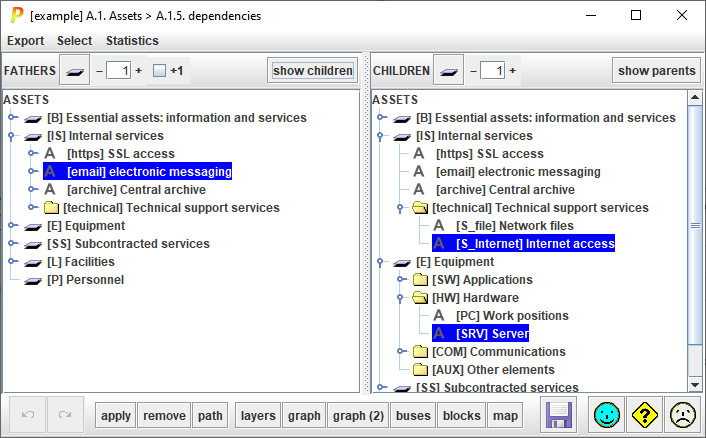
|
… to XML |
eXtensible Markup Language |
|
… to GraphML |
export data to GraphML format |
|
… to CSV |
Comma Separated Values; export for excel |
Top menu SELECT
|
no father |
selects assets without dependencies above |
|
no son |
selects assets without dependencies below |
|
dependency loops |
selects assets trapped in a loop (I depend on you, you depend on … me) |
Top menu STATISTICS
|
dependencies |
summary table |
|
|
Click to collapse left assets tree. |
|
|
Control the level of expansion of the left tree. If [+1] is selected, the descendent asset is shown as well. |
|
[+1] |
Controls whether assets (left) tree includes descendants or only assets |
|
SHOW CHILDREN |
Select an asset on the left panel. Click SHOW CHILDREN for PILAR to select the direct descendants, and mark the indirect descendants, on the right tree. |


Top right toolbar CHILDREN
|
|
Click to collapse right assets tree. |
|
|
Control the level of expansion of the right tree. |
|
SHOW PARENTS |
Select an asset on the right panel. Click SHOW PARENTS for PILAR to select the direct ascendants, and mark the indirect ascendants, on the left tree. |



|
undo. The last APPLY or REMOVE done |
|
|
|
redo. The last APPLY or REMOVE undone. |
|
APPLY |
Select one or more assets on the left. Select one or more assets on the right. Click APPLY to make each asset on the left depend on every asset on the right. |
|
REMOVE |
Select one or more assets on the left. Select one or more assets on the right. Click REMOVE to make each asset on the left independent from every asset on the right. Or select a dependency on the left and click REMOVE to remove it. |
|
PATH |
Select one asset on the left, and one asset on the right. Click PATH to open a window with the route(s) from the left asset (green) down to the right asset (red). |
|
LAYERS |
Opens a new window with as many boxes as layers, showing dependencies. See “[[Assets / Dependencies / Layers]]”. |
|
GRAPH (1) |
Opens a new window with as many boxes as assets, showing dependencies. See “[[Assets / Dependencies / Graph]]”. |
|
GRAPH (2) |
As GRAPH, but uses an alternative algorithm for default placing of boxes. See “[[Assets / Dependencies / Graph]]”. |
|
BUSES |
Opens a new window with as many boxes as assets, showing dependencies. See “[[Assets / Dependencies / Buses]]”. |
|
BLOCKS |
Opens a new window with as many boxes as assets, showing dependencies. See “[[Assets / Dependencies / Blocks]]”. |
|
MAP |
Opens a new window with as many boxes as assets, showing dependencies. See “[[Assets / Dependencies / Map]]”. |


Several screens present a LIVE checkbox on top. If selected, the diagram follows the assets selected on the main screen. Otherwise, the diagram has to be updated manually.
To establish a dependency
- select F in the left panel (one or more assets)
- select S in the right panel (one or more assets)
- click on APPLY
If F or S, or both of then, are groups, the dependency will be established between the corresponding sons. So, when a group depends on another group, every asset from the father group depends on each asset of the son group.
To remove a dependency
- select F in the left panel (one or more assets)
- select S in the right panel (one or more assets)
- click on REMOVE
or
- select S in the left panel (one or more assets)
- click on REMOVE
To find out the sons of F
- select F in the left panel (one or more assets)
- click on SONS
To find out the fathers of S
- select S in the right panel (one or more assets)
- click on FATHERS
To set a degree of dependency
By default, dependencies are 100% on every dimension.
To set a degree between 0% and 100%:
- expand dependencies under an asset
- select the son asset
- click on the right button of the mouse
[[Dependencies per dimension of security]]
To discover the dependency route from one asset to another
- select the father on the left panel
- select the son on the right panel
- click on PATH