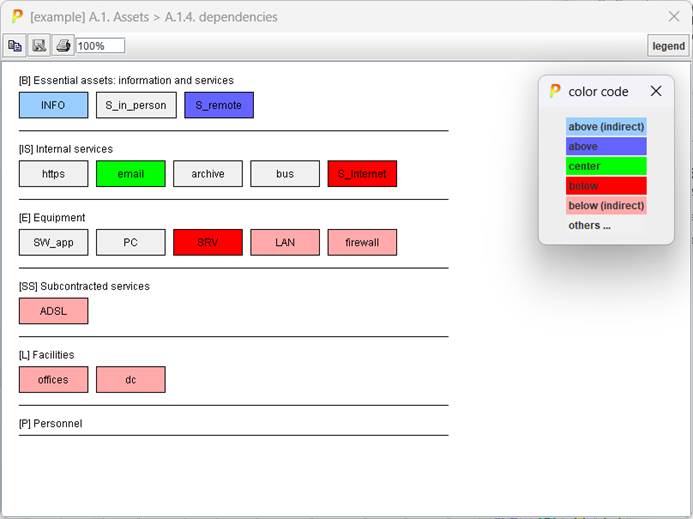
Assets are presented in layers. Assets cannot be repositioned.
When an asset is selected, the map is coloured:
|
light blue |
the assets indirectly above |
|
strong blue |
the assets directly above |
|
green |
the selected asset |
|
strong red |
the assets directly below |
|
light red |
the assets indirectly below |
|
grey |
unrelated |
To modify the dependencies
While an asset is selected (green) you may go to another asset and click on the right mouse button:
- to add this asset as above the selected one
- to add this asset as below the selected one
- to remove the dependency between this and the selected asset
To discover the dependency route from one asset to another
- select the father (green)
- select the son (right button)
- click on
PATH
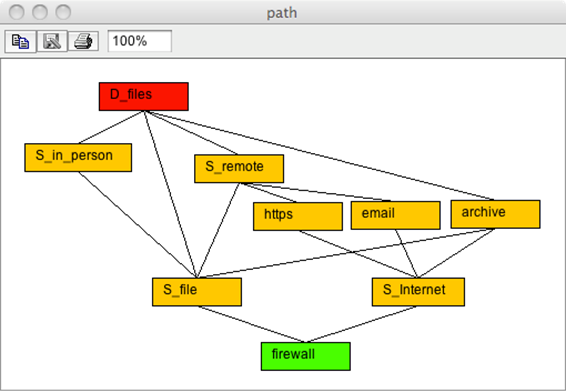
the picture shows the routes (yellow) from the upper asset (red) to the lower asset (green):
|
|
copy |
Copies the image to the note pad to paste it somewhere else. |
|
|
save |
to store the picture as an image file. The available image formats depend on the hosting machine; some formats are quite widespread: jpg, jpeg, png |
|
|
print |
to send the picture to a printer |
|
|
scale |
to enlarge / decrease the image |