This screen associates classes to assets.
The left tree, organised by asset, shows the codes of the asset classes that are associated to each asset.
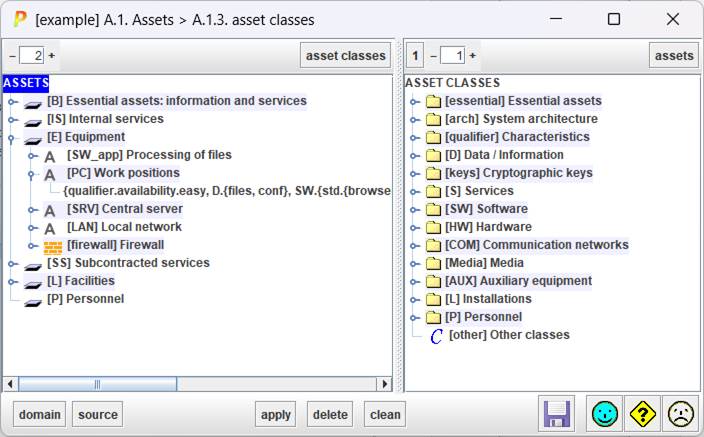
Top left
|
|
Controls the level of expansion of the left tree (assets). |
|
ASSET CLASSES |
Select one or more assets on the left. Click ASSET CLASSES, and PILAR will select the associated classes on the right tree. |

Top right
|
|
Controls the level of expansion of the right tree (asset classes). |
|
ASSETS |
Select one or more asset classes on the right. Click ASSETS, and PILAR will select the associated assets on the left tree. |
Bottom
|
DOMAIN |
Select assets in left panel that belong to the given domain |
|
SOURCE |
Select assets in left panel associated to the
selected source |
|
APPLY |
Select one or more assets on the left.
Select one or more classes on the right. Click APPLY to associate. |
|
DELETE |
Select one or more assets on the left.
Select one or more classes on the right. Click DELETE to dissociate. |
|
CLEAN |
Select one or more assets on the left.
Click CLEAN to dissociate from classes. |
To associate a class to an asset
- select one or more assets (left panel)
- select one or more classes (right panel)
- click APPLY
To remove a class association
- select one or more assets (left panel)
- select one or more classes (right panel)
- click DELETE
or click DELETE key
To simplify an association (that is, if
both a class and its father are marked, to retain only the most detailed class)
- select one or more assets (left panel)
- click CLEAN
To discover the classes associated to an
asset
- select the asset (left panel)
- click ASSET CLASSES (left panel, top)
To discover the assets associated to a
class
- select the class (right panel)
- click ASSETS (right panel, top)
To copy the associations of one asset to
another
- select the source asset (left panel)
- click ASSET CLASSES (left panel, top)
- select the target asset (left panel)
- click APPLY