|
Quick start |
|
Select automatic threats in Options / Threats |
This section explains the behaviour for manual mode. If it is automatic, most options are disabled since PILAR automatically applies the standard values from the TSV file (See “Threat Standard Values”).
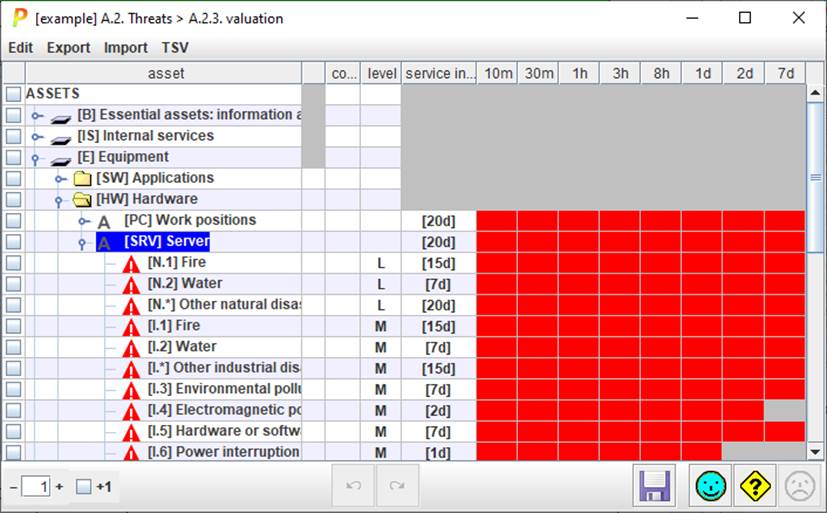
After determining which threats are relevant to each asset, let's rate them.
Top menu EDIT
|
options |
options – see Edit_options |
|
copy |
Select one or more value cells in [9]. Copy values to be pasted. |
|
paste |
Select one or more destination cells in [9]. Paste the copied values. If the source range is 1 cell, and the destination covers several cells, the value is copied into all of them. |
|
to CSV |
Comma Separated Values (for excel) |
|
to XML |
eXtensible Markup Language |
Top menu
IMPORT
|
from XML |
eXtensible Markup Language |
Top menu
TSV
|
TSV |
Table columns

|
1 |
selection |
Click on checkboxes to check / uncheck. SHIFT-click to check a range. Click on column header to clear current selection. Selection control whole rows to apply TSV (see [1]) or clear (see [16]) |
|
2 |
asset |
Assets and threats. |
|
3 |
|
shows the mode of each asset / threat: · red: manual, either one threat or all the threats for one asset · orange: within one asset, some threats are manual · transparent: automatic (TSV driven) In mix mode, click to change |
|
4 |
level |
This column presents likelihood. The format is decided at Options / Likelihood |
|
5 |
|
interruption interval |
|
6 |
|
Graphical display of the interruption time |
Bottom toolbar

|
|
Spinner to control the expansion of the assets tree. |
|
+1 |
Adjust the effect of the spinner. If +1 is checked, PILAR shows the threats associated to an asset. If unchecked, the threats are not expanded. |
|
|
Undo last changes. |
|
|
Redo last undone changes. |
|
|
Saves current project either in its file, or in its database. |


NOTE. If Options / Threats are set to automatic, then some buttons are disabled:
§ copy & paste
§ import from XML
§ clear
§ undo / redo