|
Quick start |
|
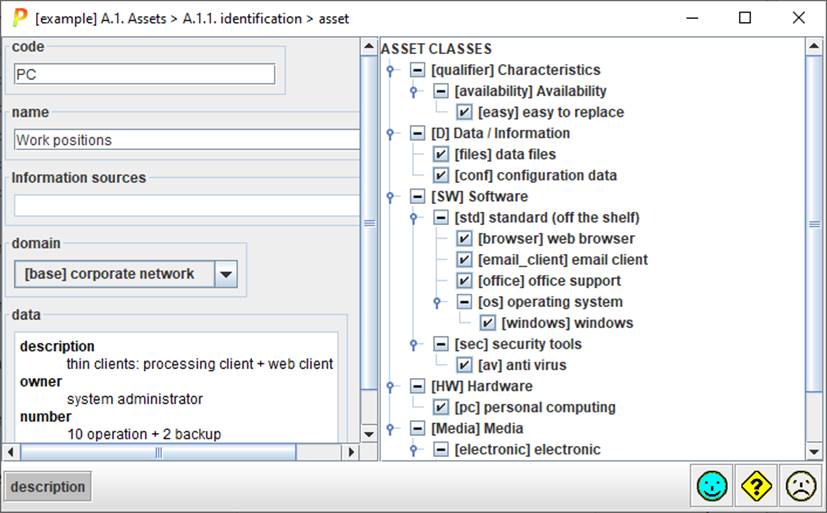
Select a unique code and a descriptive name. Check on one or more classes on the right panel. Click STANDARD and add some descriptive information. Click OK to continue. |
|
code |
which shall be unique. |
|
name |
A short description: one line. |
|
sources |
Click to associate the asset to zero or more information sources. |
|
domain |
Select the security domain to which the asset belongs. |
|
description |
A longer description. The description may include
hyperlinks (URLs). To go to the linked page RIGHT-CLICK, then |

Data: Key-value pairs
Key-value pairs to describe the asset. It is just for administrative purposes.
On double click, an editing window opens
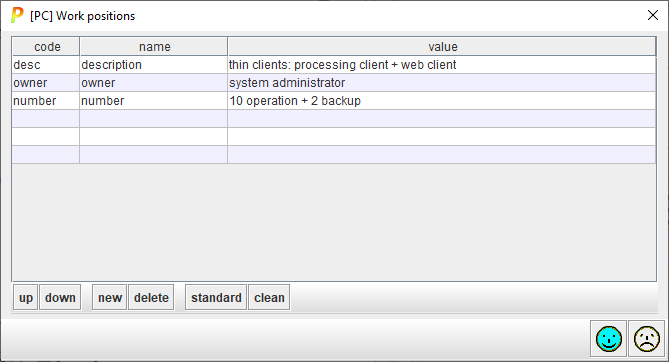
· Click on the code column to edit a code. The code is useful for translations.
· Click on the name column to edit a name
·
Click on the value column to
edit a value.
Operations on the key-value pairs:
· up – moves the selected row upwards
· down – moves the selected row downwards
· new – adds one more row
· delete – removes the selected row
·
standard – adds standard keys,
taking into account the classes marked in [10]
See info file.
· clean – removes the rows that have no contents in the value field
Asset
classes
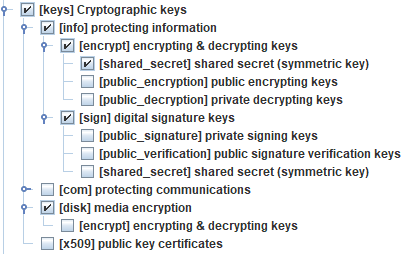
You may qualify the asset with zero or more classes. Classes are used to select threats and safeguards.
 means that the class is not
selected for this asset
means that the class is not
selected for this asset
 means that the class is
selected for this asset
means that the class is
selected for this asset
 means that a subclass is
selected for this asset
means that a subclass is
selected for this asset
Class
clean / delete
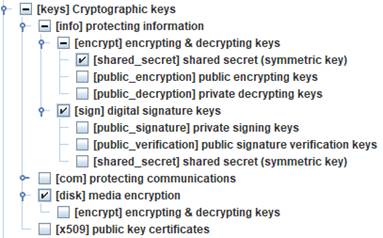
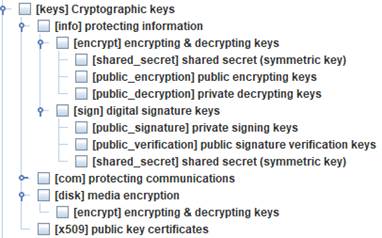
You may right-click on the asset classes’ tree to clean or to delete marks. Cleaning means removing redundant marks, while deleting means removing marks.
Example
|
right
click + CLEAN |
right
click + DELETE |
|
|
|